First line
Before you escalate
Confirm drive letters, unlock encryption if applicable, reproduce on one other port or machine, and capture Disk Management + Recuva’s target screen. Half of “Recuva is broken” threads are environment or permissions.
Support desk
Missing volumes, deep scans that crawl, files that will not open - distilled so you can self-resolve fast or drop a precise repro into Slack or the ticket queue. The expandable topics below mirror what helpdesks see most often; skim headings first, then open the few that match your symptom.
Recuva.pro does not operate a vendor helpdesk. Use this page for first-line triage, then documentation from the source that supplied your installer or your IT channel for product-specific support. For run order and staging rules, see Workflow; for short policy answers, FAQ; for SSD and result-grid nuance, Blog.
If you only have two minutes: confirm the volume is unlocked and lettered, confirm exports target a different physical disk, run quick scan before deep, and capture one screenshot of the wizard target screen before you change anything else.
Open Disk Management: confirm the volume is healthy, online, and has a drive letter. Swap cables and ports; skip flaky hubs on marginal disks. If hardware is failing, clone first (e.g., ddrescue) before deeper scans.
BitLocker or other full-disk encryption hides the filesystem until the volume is unlocked with the correct key or recovery password. Recuva cannot see meaningful file entries through a locked container - decrypt (or attach with keys) on a trusted machine first.
Large HDDs can run for hours. Pause aggressive real-time AV on the source path, keep AC power connected, and disable sleep. Partial hits often appear before the run finishes - watch the list, not just the progress bar.
USB 2.0 ports and busy controllers throttle throughput. Try another port, avoid sharing the same root hub with high-power devices, and note whether the UI freezes (software) versus the disk vanishing in Disk Management (hardware or cable).
Truncation usually means overwritten clusters. Retry with deep scan, restore to another disk, and verify extensions. Test photos in multiple viewers; try dedicated repair tools for Office archives and ZIPs.
Carved files sometimes keep the wrong extension. If a “.docx” will not open, try a hex viewer or rename experiments only on a copy - you are testing format, not fighting the last good inode.
Install and run from an account that can elevate when Windows prompts. SmartScreen warnings mean you should verify the code-signing identity and hash, not blindly click through - but repeated blocks on a known-good binary often trace to policy or a quarantined download.
Corporate AV and Controlled Folder Access can prevent reading the source or writing exports. Add narrow exclusions for the staging path and Recuva’s install directory only after security approves, or run from an approved portable copy on removable media.
Treat format prompts as a red flag, not a fix. Switch to a desktop card reader with a short cable, avoid daisy-chained hubs, and try another machine if the bus resets mid-scan. If the card drops from Device Manager entirely, suspect power or card failure before blaming Recuva.
More context on readers and the format dialog lives in SD card recovery on the blog.
Pick a destination where your user account can create files - your profile or an attached disk with write permission. Network shares may need credentials mapped before the run; system-protected roots and read-only volumes will reject writes even when the scan succeeds.
OneDrive and other sync folders can fight for locks. Stage to a plain local path first, then copy into cloud storage after you verify opens.
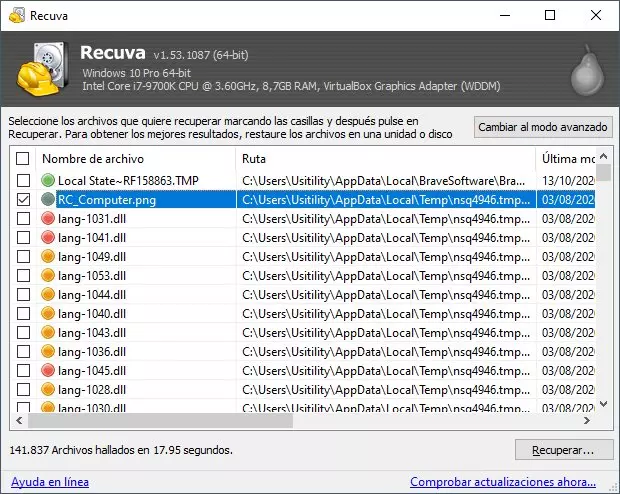
Deep scan often produces numbered placeholders. Sort by size and type, sample-open files, and cross-check against what the user expects. Green condition in the list is a hint, not a guarantee - see reading the results grid.
The file table may already have recycled the entries, or heavy writes have begun. Stop using the volume, confirm you targeted the correct drive letter, and escalate to deep scan with a staged destination. If the OS installed updates or a backup job ran, odds drop quickly.
On SSDs, TRIM and background optimization shrink the carve window - see SSDs and TRIM for realistic expectations.
Recuva is built around local block devices and removable volumes that Windows exposes with stable letters. SMB shortcuts, web-only cloud folders, or iSCSI targets with flaky sessions can look like a path in Explorer but still behave badly under raw access.
When possible, attach the disk physically or copy an image to a local drive first. Chasing deleted files across a WAN link while the share drops mid-scan wastes hours.
Multiple shortcuts to different builds confuse tickets. Note the full path to the executable, file version from Properties, and whether you elevated. Mixing an old USB copy with a newer installed build can mean different options screens and different defaults.
Policy teams sometimes allow only one variant - mirror the approved package from your internal share and hash it against the published digest.
Volume Shadow Copy Service snapshots sometimes recover whole files without carving - worth checking in File Explorer → Properties → Previous versions when the feature is enabled and space was reserved.
Recuva and VSS answer different questions: snapshots restore known good copies from a point in time; Recuva hunts deleted clusters. Try VSS when policy allows; fall back to Recuva when snapshots never existed or were purged.
Deep scans stress I/O and can enlarge pagefiles or temp use on the OS volume. Free a few gigabytes on C:, close RAM-heavy apps, and avoid recovering huge batches into profile folders that sync to the cloud mid-run.
If Windows is thrashing disk at 100% for unrelated reasons, fix that first - otherwise the scan looks “hung” when the whole machine is starved.
Letters reshuffle when you attach drives, boot another OS, or image a disk. Before a long deep scan, open Disk Management and match capacity and label to the user’s story - not just the letter they remember from last week.
Recovery partitions and OEM tools can look like small volumes; scanning the wrong 500 MB slice wastes time. When in doubt, read the volume size in the UI and compare to what Explorer shows for the data partition.
Mounted VHD/VHDX files appear as volumes once Windows attaches them. Ensure the parent disk has space and the image is not on the same failing spindle you are trying to rescue. Hyper-V and VMware guests need stable disk passthrough - flaky shared folders are not a substitute for a raw volume.
If the VM host is snapshotting or merging checkpoints while you scan, pause that work - concurrent writes to the same backing file create the same overwrite risk as a live OS disk.
Windows Update and hard power loss interrupt deep scans. After reboot, verify the disk still mounts cleanly, then restart from a clear head: same target letter, same staging disk, same mode. Partial lists from the previous run are not a checkpoint - treat the new pass as authoritative.
Defer feature updates until after critical recovery; use active hours or pause updates briefly when policy allows.
Recuva recovers deleted or lost clusters; it does not decrypt ransomware payloads. If files were in place encrypted, you still face cryptography and key material - not an undelete problem. If the malware deleted originals after encrypting copies, you may see carved fragments with wrong structure.
Isolate the machine, preserve evidence per policy, and involve security responders. Consumer undelete tools are a small slice of that story.
Deep restores that recreate deep trees can exceed legacy MAX_PATH limits on some tools. Stage to a short root such as D:\rcv\ and enable long-path awareness in Windows where your org allows it. Flatten or rename batches if the destination is a legacy app or share.
See folder structure restore when path depth explodes.
Repair utilities rewrite metadata and can shuffle or overwrite free clusters. If you still need carveable data, prefer imaging the volume first, then work from the image. If repair already ran, document exactly which options were chosen - that changes what Recuva can still see.
Never run in-place repair on the only copy of a failing disk when a clone is still possible.
FAT32 caps single files around 4 GB. exFAT is more forgiving but still carries fragmentation and cluster-size quirks. If large videos or disk images truncate on export, stage to NTFS (or another filesystem that supports the file sizes you need) and retry.
Match destination format to the largest file you expect - do not discover the limit halfway through a batch.
A typo in *.pdf or the wrong folder root produces an empty list even when the disk is fine. Clear masks temporarily, widen to the volume root, and confirm the wizard sees files before tightening again.
Review advanced mode and masks for examples that match your case.
Exports may inherit awkward ACLs when they came from another user profile or system image. On your staging copy, take ownership or grant your account read access via Properties → Security (only after policy allows).
Corporate devices sometimes block execution from removable media - move verified exports to an allowed path before calling antivirus a failure.
Field note
Capture your settings
Screenshot scan options and disk layout. Threads close faster when everyone sees the same run configuration.
Include the destination path root and whether encryption was unlocked - text beats memory after a night shift.
If Event Viewer shows disk errors the same hour as the scan, paste that correlation into the ticket too.
First line
Confirm drive letters, unlock encryption if applicable, reproduce on one other port or machine, and capture Disk Management + Recuva’s target screen. Half of “Recuva is broken” threads are environment or permissions.
Escalation pack
Scope
Recuva.pro is educational only. For licensing, billing, or crash reports against the shipping product, use the support path tied to where you obtained a verified installer. We do not collect logs or remote into your PC.
On this site
Fast triage
Use as a verbal checklist on a bridge call - top row is what the user reports; bottom row is what you verify before touching settings again.
Remote hands
Ask them to read window titles and drive letters out loud. Have them unplug optional drives so the letter map matches your mental model. Tell them explicitly “do not format” if Windows nags. End the call with a written note: source letter, destination root, mode, start time, and your name - future shifts inherit context.
Not always a bug
Reality check
If two disciplined passes (quick then deep) with correct staging produced the same broken samples, a third pass rarely adds magic. Document filenames, sizes, and hex headers of failed opens, then branch: different tool class, forensic lab, or accept partial loss. Burning another night on identical settings helps no one.
Complements
Disk health SMART GUIs, imaging utilities for failing platters, hex editors for signature checks, and vendor-specific SD utilities all sit beside Recuva in the same playbook - not instead of it. Match the tool to the failure mode (mechanical vs logical vs policy).